
Sign In
Account
Lists
Your Searches
Reading History
Library Savings
Home Page
Search
Holds
Sign In
From the menu on our website, click Catalog to go to the online catalog.

After entering the catalog, click on sign in on the right side of the screen.
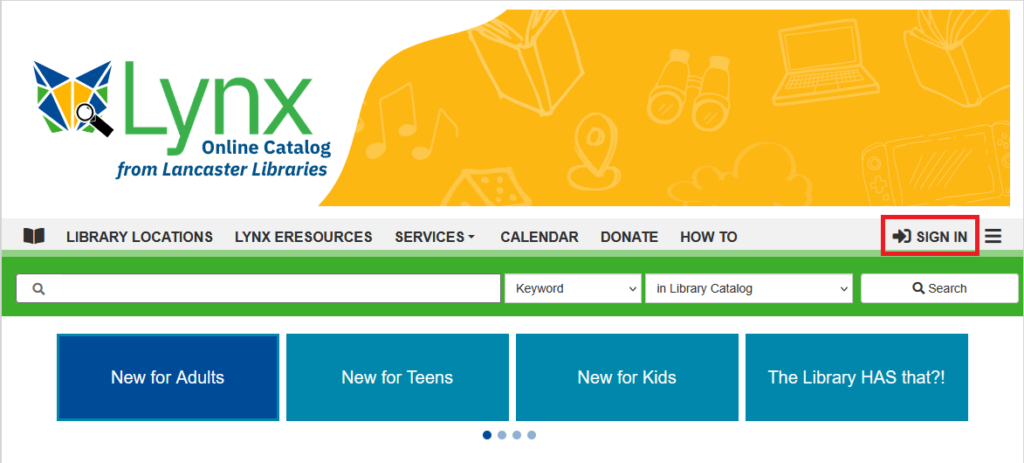
You will be prompted to type in your library barcode number (the number on the back of your library card) and password, which is the last 4 digits of your provided phone number, unless you have changed it. If you need help with your password, please contact us at (717) 626-2255.

Account
Once you sign in, you will be taken directly to your account. It has any information relevant to your library account such as checked out titles, fines, etc.
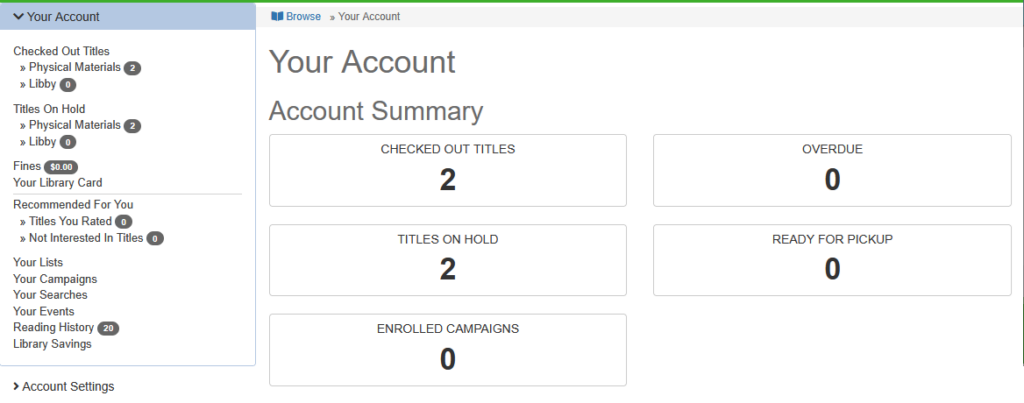
If you click on any of the categories in the left sidebar, you will be taken to the page about that category. It is the same if you click on any of the Account Summary categories.
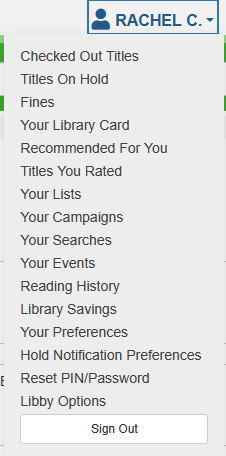
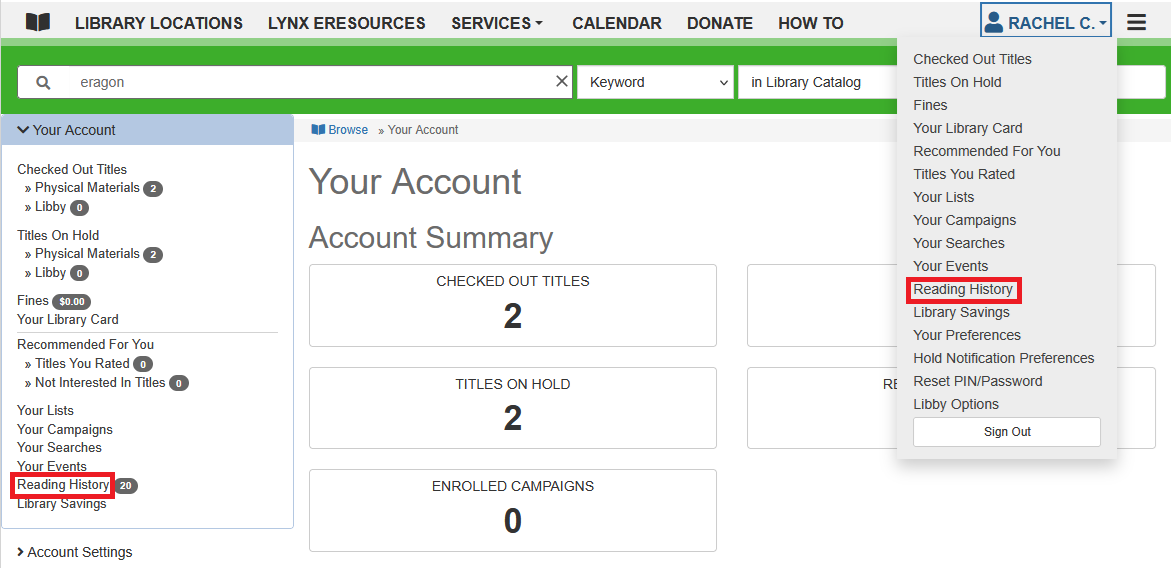
Wherever you are on the Catalog, if you click on your name, which has replaced Sign In in the top right corner, you will get a drop-down menu that will provide you with the same categories on your Account page.
Lists
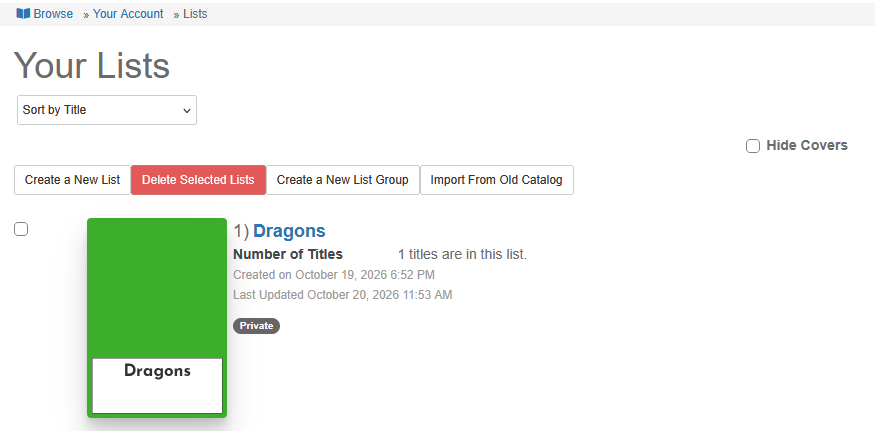
You can create lists in your account. A list is a way for you to personally save and keep track of multiple items at once. While you are searching the catalog, you can put items in your lists to look over later.
You can create multiple lists and you can center them around whatever is of interest to you.
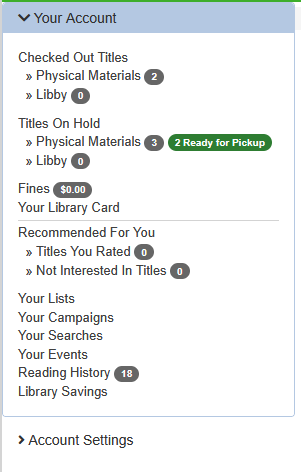
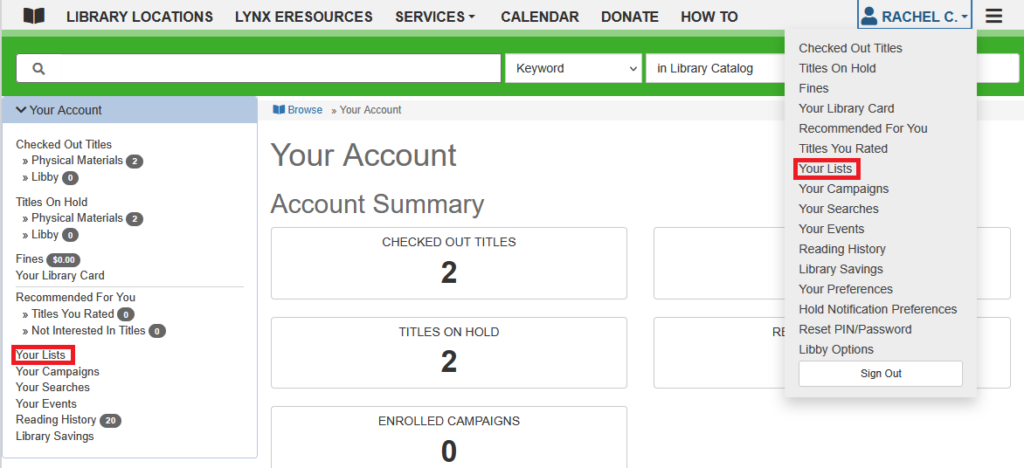
To create a List, click on Your Lists on the left sidebar of Your Account or under the dropdown account menu.
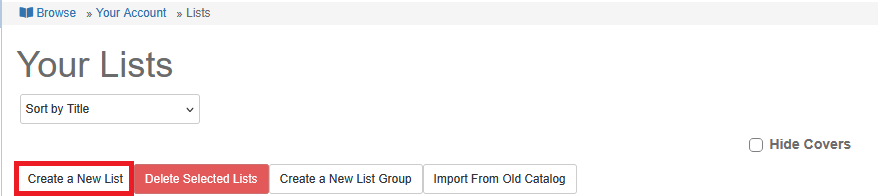
Click on Create a New List to title the list and give it a description.
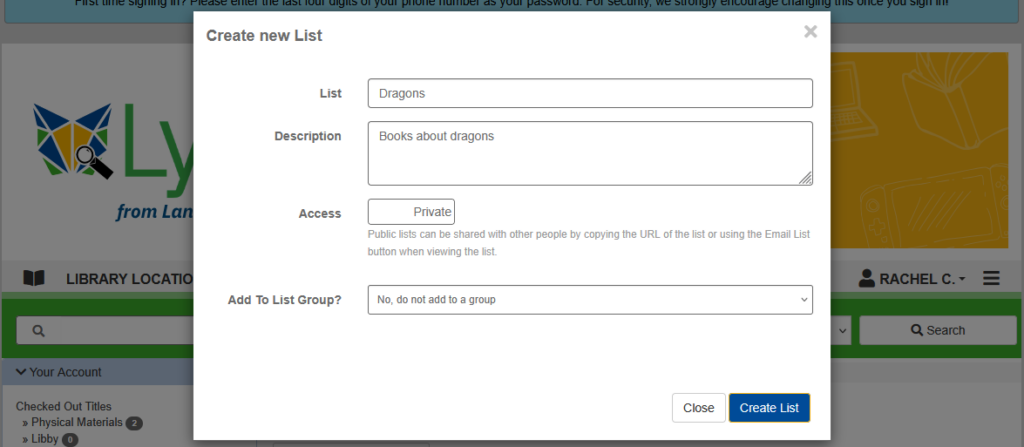
Then, click Create List. If you have multiple lists, you can group them together.
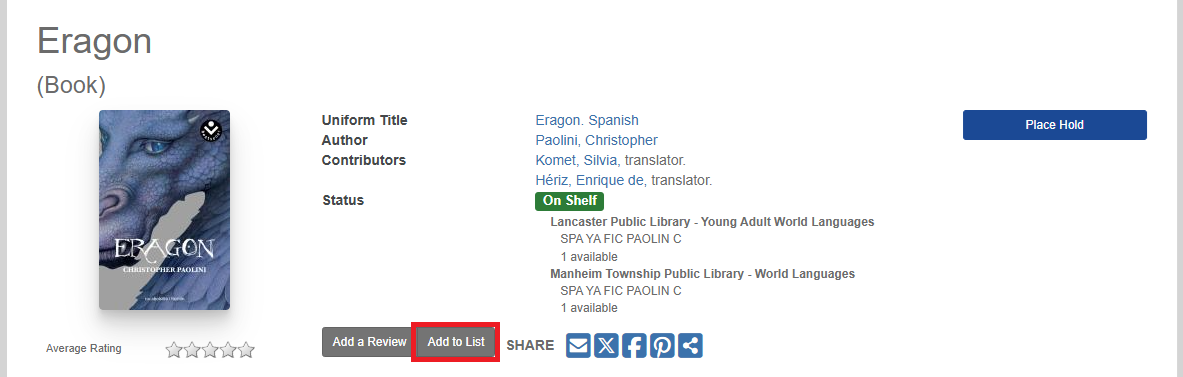
When you are searching the catalog, you can now save items into your List. At the bottom of an item’s record, there is a button that says Add to List.
If you have multiple lists, choose which one to save it to, or create a new list from here. Once you have selected which list to put the item in, click Save to List.

When you return to Your Account and go to Lists, the list, with the item, will be there for you. It will not be removed until you delete it.
Your Searches
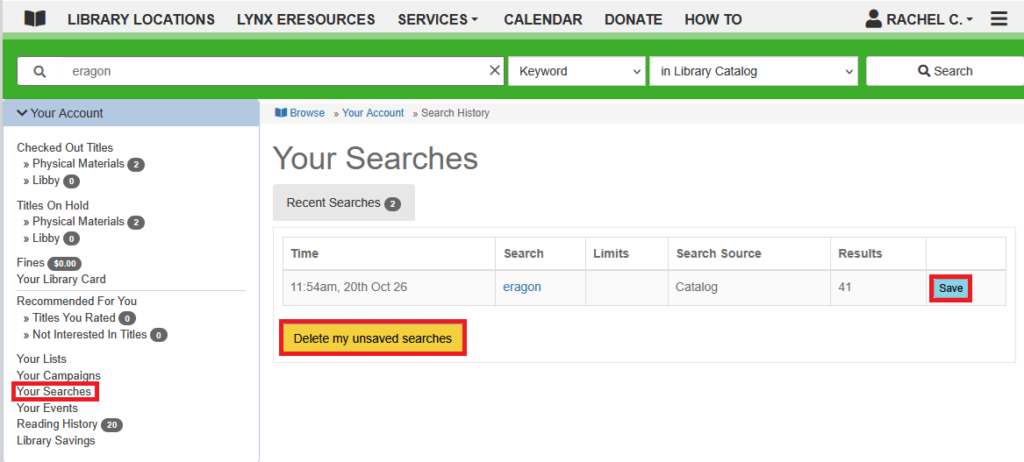
The catalog keeps track of your recent searches for your use. You can save a search if you wish to continue using it and delete your unsaved searches.
Reading History
The library takes seriously the privacy of your library records. Therefore, we do not keep track of what you borrow after you return it. However, our automated system has a feature called “My Reading History” that allows you to track items you check out. Participation in the feature is entirely voluntary.
If you would like to track your reading history, click on Start Recording My Reading History. When you return to this section in Your Account, it will have a record of your items.
Library Savings
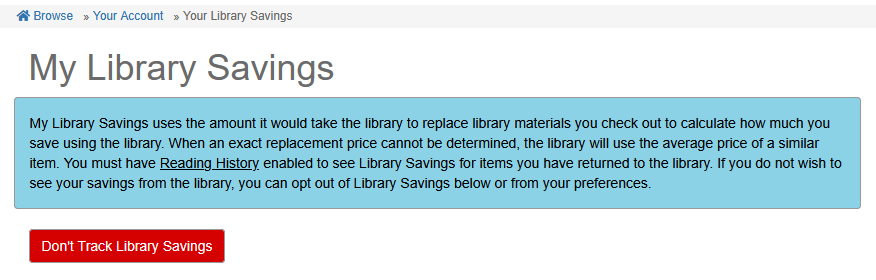
Much like Reading History, you can also track how much money you saved by borrowing items rather than purchasing them. My Library Savings uses the amount it would take the library to replace library materials you check out to calculate how much you save using the library. You must have Reading History enabled to see Library Savings for items you have returned to the library. You can opt out whenever you want.
Home Page
When you first access the catalog, there are few boxes across the top of the page. Clicking on any of these will allow you to browse general categories of what the library system has to offer that is new as well as non-book items.
If you click on the magnifying glass icon, you will be taken to Search page of the category currently highlighted.
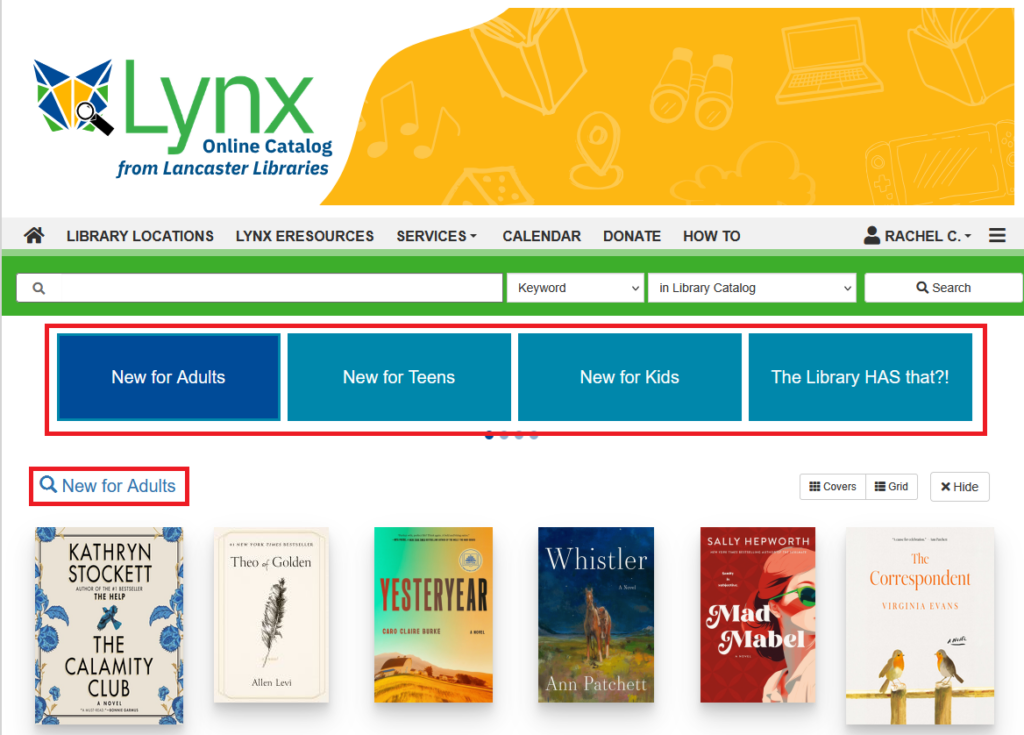
Browsing the catalog
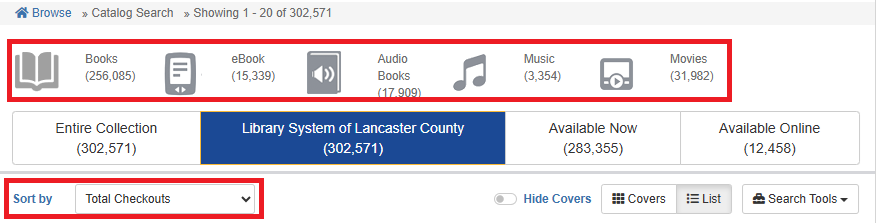
On the Search page, you will be given a variety of options on how you wish to narrow the search results.
This can be by what format you want (book, eBook, audiobook, etc.) They are the grey icons. You can also select what is available to borrow now, and what is available online.
If you click on the Sort by box, you can sort the search results in various ways such as title, author, publication date, number of holds, etc.
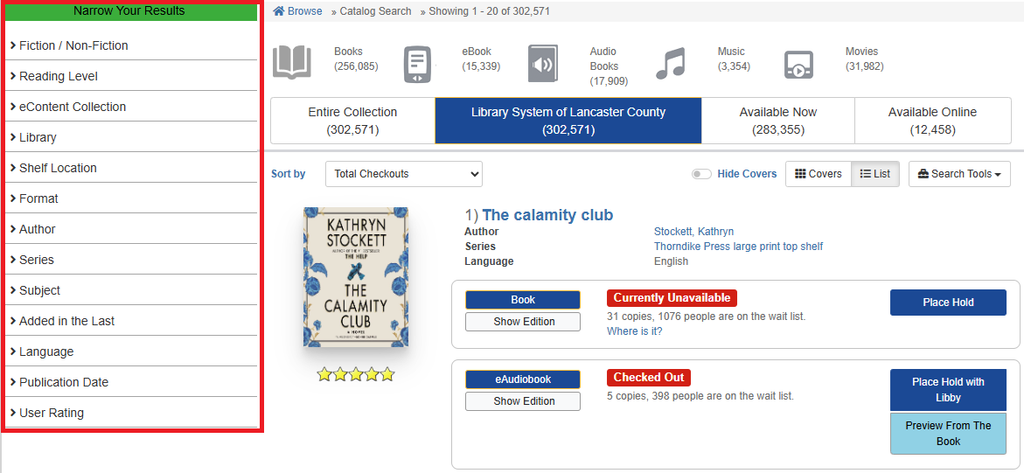
You can narrow your search by fiction/nonfiction, library, language, availability, and more through the Narrow your Results sidebar on the left side of the screen.
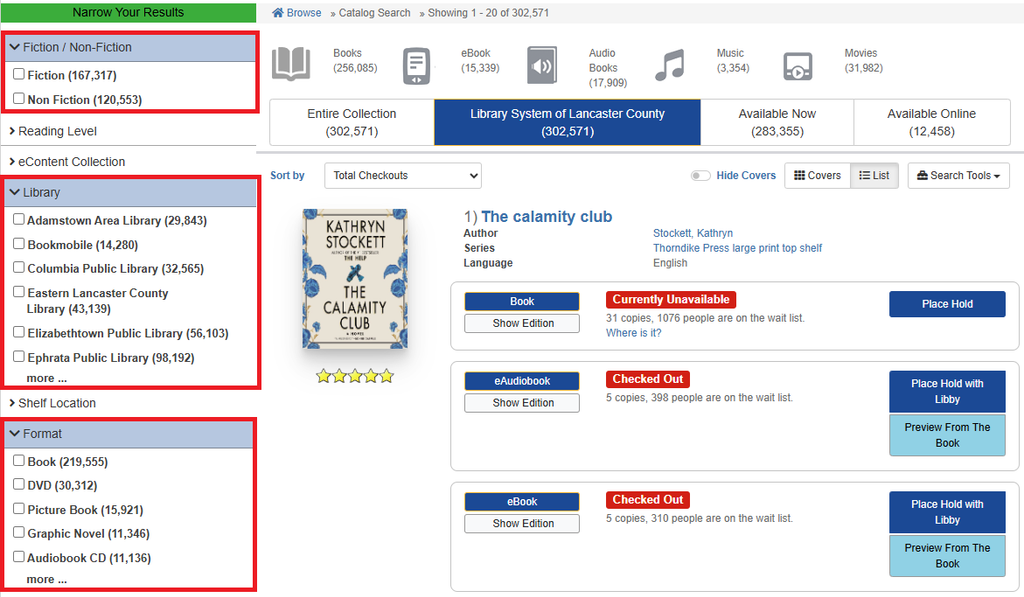
You need to click on each filter option to see its drop-down menu. Click the checkbox next to the category(s) you need to update the search. The page will update automatically so you do not have to click Search again.
Search
Enter a keyword into the main Search bar. Hit Search.

Click on Keyword to change the filter if you have a specific title, author, or one of the other filters.
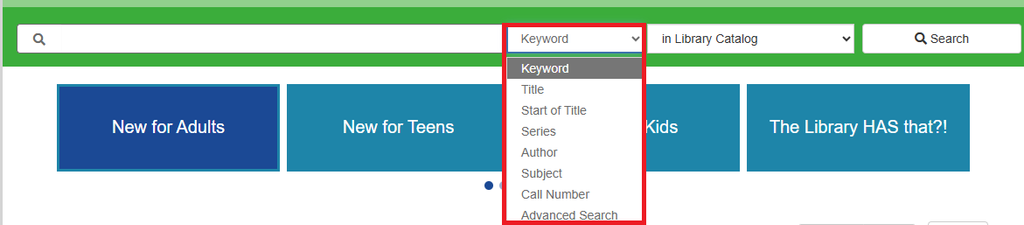
Click on in Library Catalog to filter your search if you’re looking for an item that is in one of your lists or events. More information will be provided in their own section.

Placing Holds
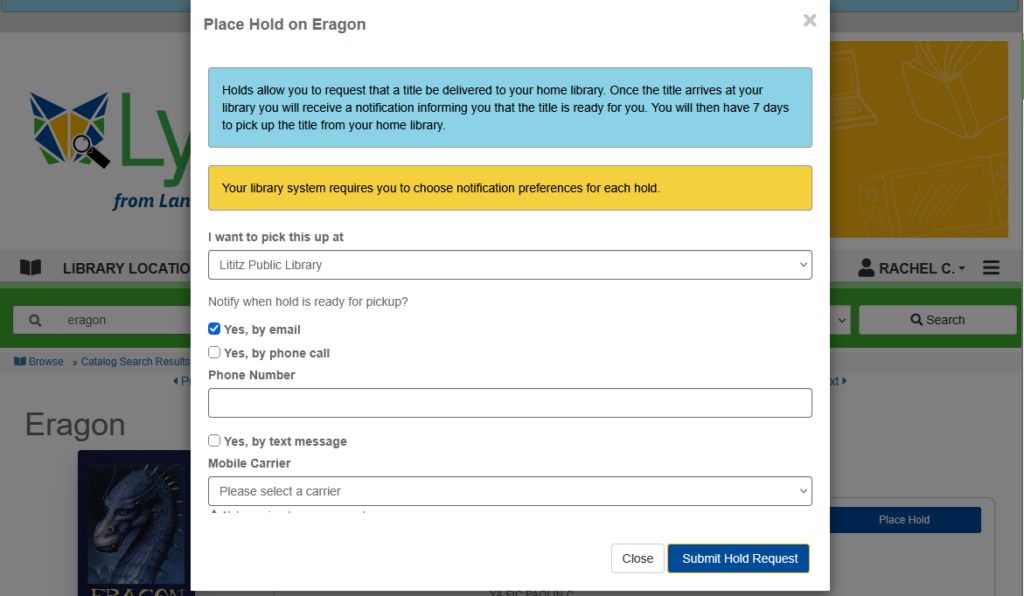
Once you find an item that you would like to borrow, click on the Place Hold button.

Note: if you did not filter the search as stated in the Search for an Item section, you will get multiple editions of your item such as audiobooks. Please make sure that you correctly select your preferred edition.
If you have not signed into your library account, you will be prompted to at this time.

Please fill out the following boxes. Then click Submit Hold Request.
Canceling a Request
By clicking on Titles on Hold in the side bar or by clicking on Titles on Hold in the drop down menu when you click on your Account sign-in name.
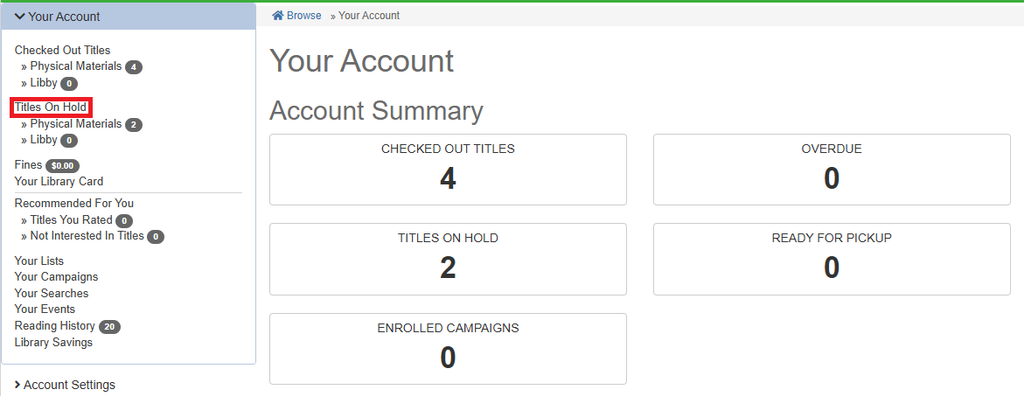
Once there, you will go to the item and click on Cancel Hold.

You will need to confirm the cancelation.
